Why is My UTM Traffic Not Showing in Google Analytics?
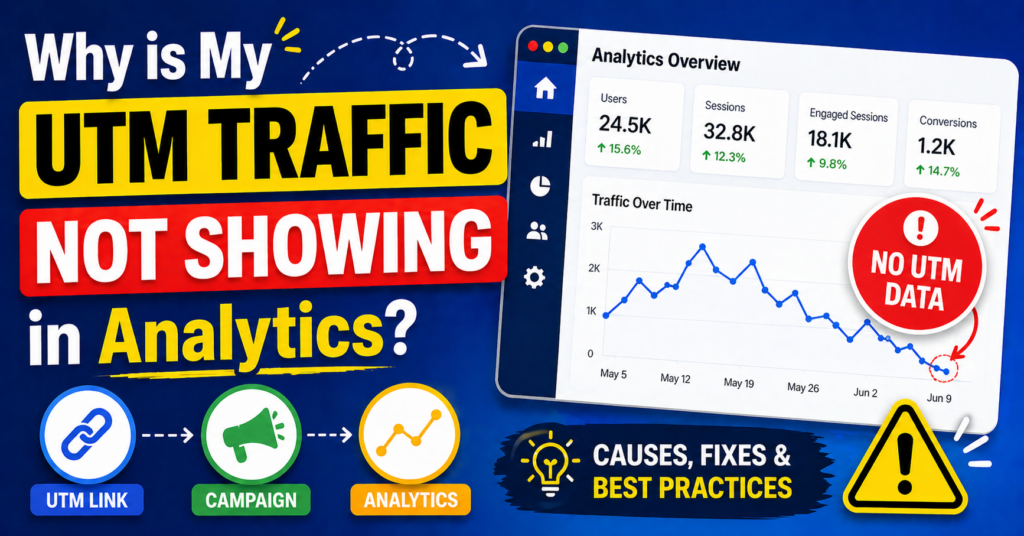
Complete troubleshooting guide to fix UTM tracking issues in GA4 and understand why your campaign data is missing.
UTM traffic may not show in Google Analytics due to incorrect parameters, tracking delays, missing tags, or wrong report selection. To fix it, ensure your UTM links are properly formatted and check them in GA4 under Reports → Acquisition → Traffic Acquisition.
Understanding the Problem
If your UTM traffic is not showing in Google Analytics, you are not alone. This is one of the most common issues faced by marketers, bloggers, and advertisers.
You may have created UTM links correctly, shared them across campaigns, and expected to see data in your reports. However, when you open Google Analytics, the data is either missing or incorrectly categorized.
This creates confusion and makes it difficult to evaluate campaign performance. Without proper tracking, you cannot make informed decisions about your marketing strategy.
Top Reasons Why UTM Traffic Is Not Showing
Incorrect UTM Parameters
Small mistakes like typos or wrong parameter names can break tracking completely.
Tracking Delay
GA4 does not always show data instantly. It may take time to appear.
Wrong Report View
Looking in the wrong section of Analytics is a very common issue.
Missing Analytics Tag
If GA4 is not properly installed, no tracking will occur.
How to Fix UTM Tracking Issues
| Issue | Solution |
|---|---|
| UTM not showing | Check URL parameters |
| No data in GA4 | Verify tracking code |
| Wrong source | Use consistent naming |
Fixing these issues ensures your campaigns are tracked accurately.
How to Check UTM Data Correctly
To view UTM data in GA4:
- Go to Reports
- Click Acquisition
- Select Traffic Acquisition
- Check Session Source / Medium
This is where your campaign data will appear.
Best Practices to Avoid This Issue
Use Lowercase
Test Links
Use Tools
Track Everything
Following these practices reduces errors and improves data accuracy.
Internal Tools & Resources
UTM Builder Tool
Create UTM Link →UTM Guide
Read Guide →Using proper tools ensures better tracking and fewer errors.
Fix Your UTM Tracking Today
Start tracking campaigns properly and improve your marketing performance.
Create UTM LinkFinal Thoughts
UTM tracking is one of the most powerful tools in digital marketing, but only if it works correctly. If your UTM traffic is not showing, it usually comes down to simple issues like incorrect parameters, delays, or wrong report usage.
By understanding the causes and applying the fixes explained above, you can ensure accurate tracking and better campaign performance.
Remember: Data is only useful when it is accurate. Fix your tracking, and your results will improve.
Disclaimer
The information provided in this article is for general educational and informational purposes only. While we strive to keep the content accurate and up to date, we do not guarantee completeness or reliability.
Any actions you take based on this information are at your own discretion. We recommend verifying important details before making decisions. This content does not constitute professional advice.
CoinThumbs is an independent website and is not affiliated with or endorsed by Google or any third-party platforms mentioned. All product names, logos, and brands are used for identification purposes only.