How to Check UTM in Google Analytics?
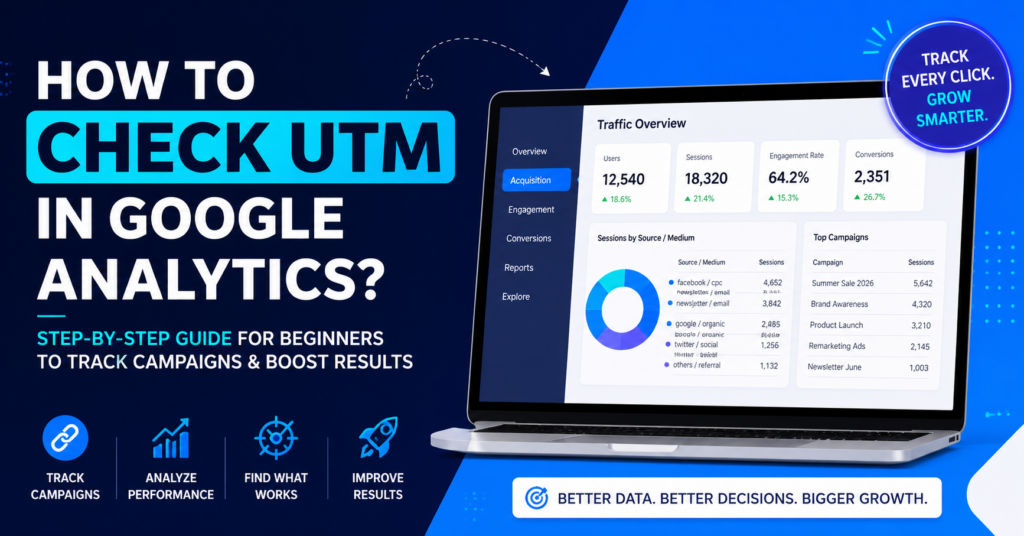
Complete step-by-step guide to track campaigns, traffic sources, and performance in GA4.
To check UTM in Google Analytics (GA4), go to Reports → Acquisition → Traffic Acquisition, then view Session Source, Medium, or Campaign to track your traffic and marketing performance.
Table of Contents
Introduction What Are UTM Parameters? Why UTM Tracking Matters How to Check UTM in GA4 How to Analyze UTM Data Common Mistakes Why UTM Not Showing Best Practices FAQsIntroduction
In digital marketing, data is everything. Without proper tracking, even the best campaigns can fail because you simply do not know what is working. This is where UTM parameters and Google Analytics come together to provide clarity.
Many marketers create UTM links but struggle when it comes to checking and analyzing the data inside Google Analytics. This leads to confusion, poor decision-making, and wasted marketing efforts.
Learning how to check UTM in Google Analytics is not just a technical skill. It is a strategic advantage. It allows you to understand your audience, optimize campaigns, and improve your overall marketing performance.
In this guide, you will learn everything step by step, from understanding UTM parameters to analyzing campaign data effectively.
What Are UTM Parameters?
UTM parameters are tags added to URLs that help track the performance of marketing campaigns. These parameters provide detailed information about where your traffic comes from and how users interact with your content.
When a user clicks a link containing UTM parameters, Google Analytics records this information and categorizes it into reports.
utm_source
Identifies the platform such as Google, Facebook, or Email.
utm_medium
Defines the type of traffic like CPC, social, or referral.
utm_campaign
Tracks campaign names like sale or launch.
utm_content
Differentiates links or ads.
These parameters work together to provide a complete picture of your marketing performance.
Why UTM Tracking Matters
UTM tracking helps you understand exactly which campaigns are driving traffic and conversions. Without it, you are relying on assumptions rather than data.
For example, if you run campaigns on multiple platforms, UTM tracking allows you to compare performance and identify which platform delivers the best results.
This enables you to allocate your budget more effectively and focus on high-performing strategies.
In competitive markets, this level of insight can make a significant difference in growth and profitability.
How to Check UTM in Google Analytics (GA4)
| Step | Action |
|---|---|
| 1 | Login to Google Analytics |
| 2 | Click Reports |
| 3 | Go to Acquisition → Traffic Acquisition |
| 4 | Select Session Source / Medium |
| 5 | View Session Campaign |
This report shows how users arrive at your website and which campaigns generate traffic.
You can also customize reports to analyze specific campaigns in more detail.
How to Analyze UTM Data
Analyzing UTM data helps you identify patterns in user behavior. Look at metrics like sessions, engagement rate, and conversions.
If a campaign generates high traffic but low conversions, your landing page may need improvement.
If engagement is low, your messaging might not be relevant to your audience.
Regular analysis helps you continuously improve your marketing strategy.
Common Mistakes
- Inconsistent naming conventions
- Missing UTM parameters
- Using wrong reports
- Not testing links
Avoiding these mistakes ensures accurate data and better insights.
Why is UTM Traffic Not Showing?
UTM data may not appear due to incorrect parameters, tracking delays, or using the wrong report.
Check your URLs, verify naming consistency, and ensure proper tracking setup to fix the issue.
Best Practices
Use Lowercase
Be Consistent
Track Everything
Test Before Use
Following these practices improves accuracy and reporting.
FAQs
Where can I see UTM campaigns?
In Traffic Acquisition report.
Are UTM links free?
Yes, completely free.
Do UTM links affect SEO?
No, they only track data.